Studio
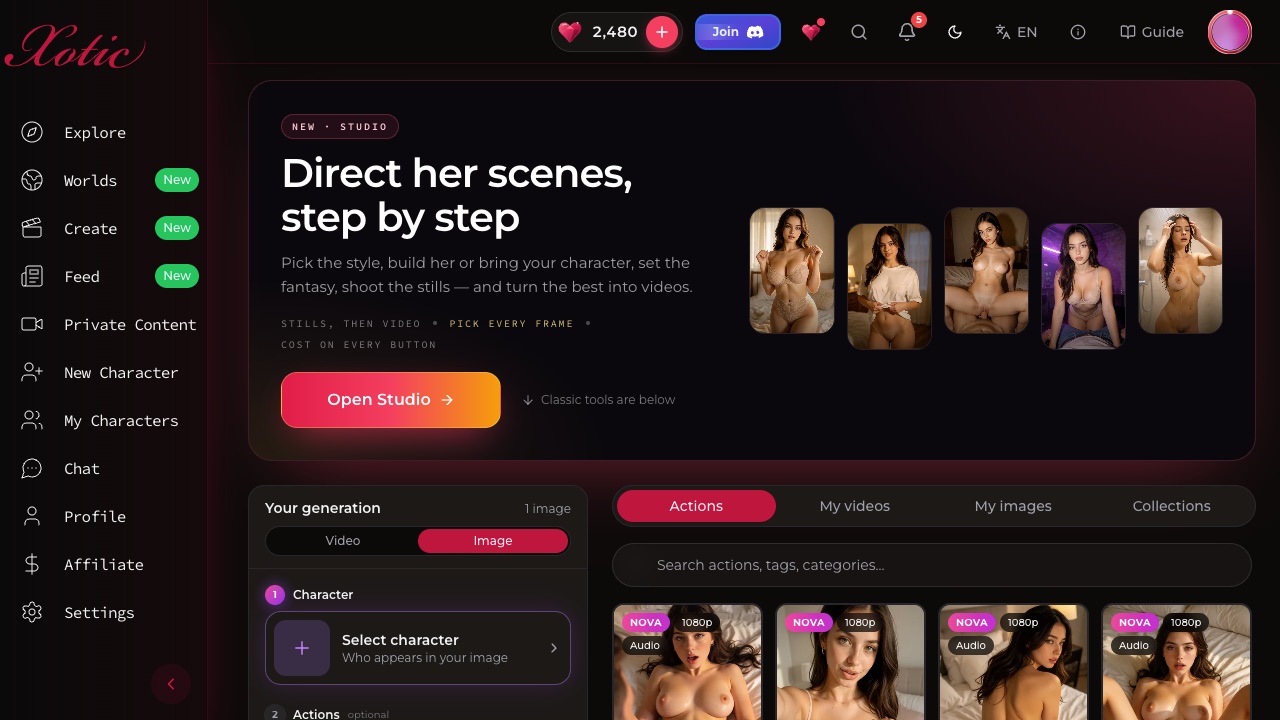
Studio is the step-by-step way to make videos on Xotic AI — pick a style, build her or bring a character, set the outfit, place and acts, then queue NOVA clips (or shoot stills first) and watch them land on your Reel.
Studio is the guided way to make videos. Instead of building every clip by hand, you walk through a few short steps: who she is, what she wears, where you are and what she does. Studio then films one clip per act and collects them on your Reel.
Open it from the Studio card at the top of Create (Direct her scenes, step by step, then Open Studio), or go straight to /create/studio. The classic tools are still below the card on the Create page.
The steps#
The step rail along the top shows where you are: Style → Her → Preview (optional) → Fantasy → Videos → Reel, with an optional Stills step if you'd rather pick your frames first. You can jump back to any step. Start over begins a new run, and your renders stay in My Images and My Videos.
1. Style#
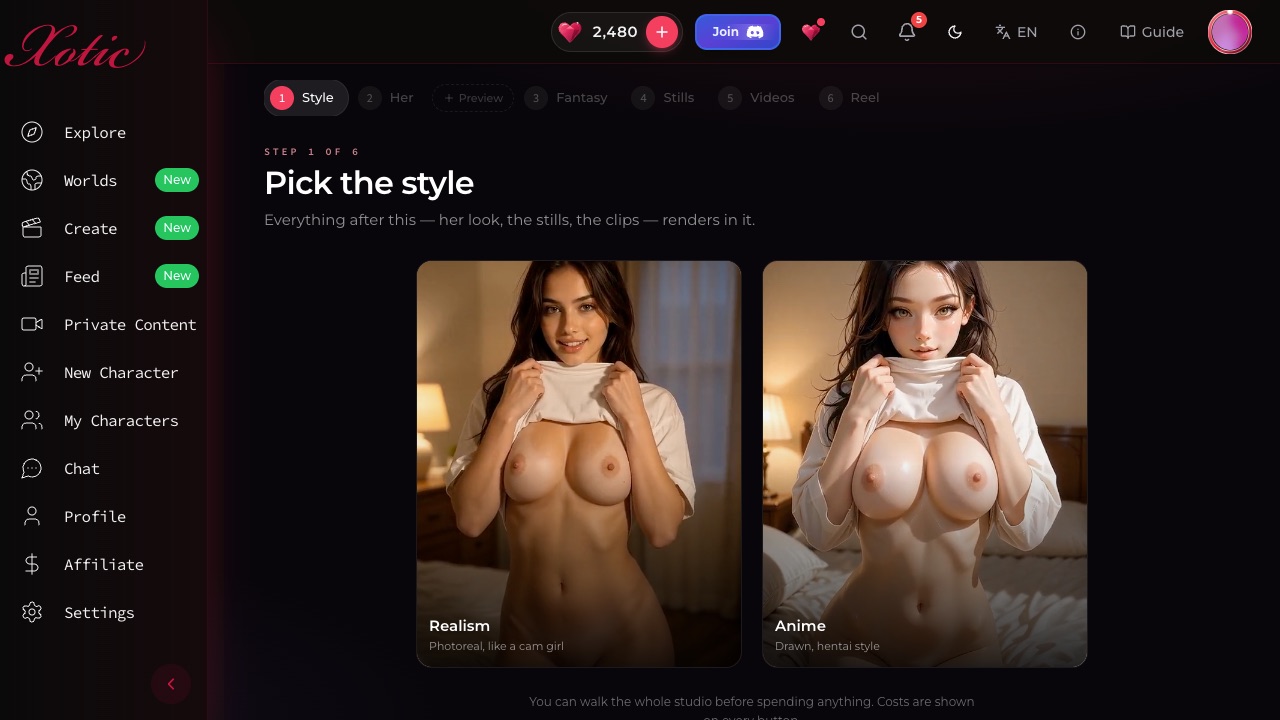
Pick Realism (photoreal, like a cam girl) or Anime (drawn, hentai style). Everything after this renders in that style: her look, the stills and the clips.
2. Her#
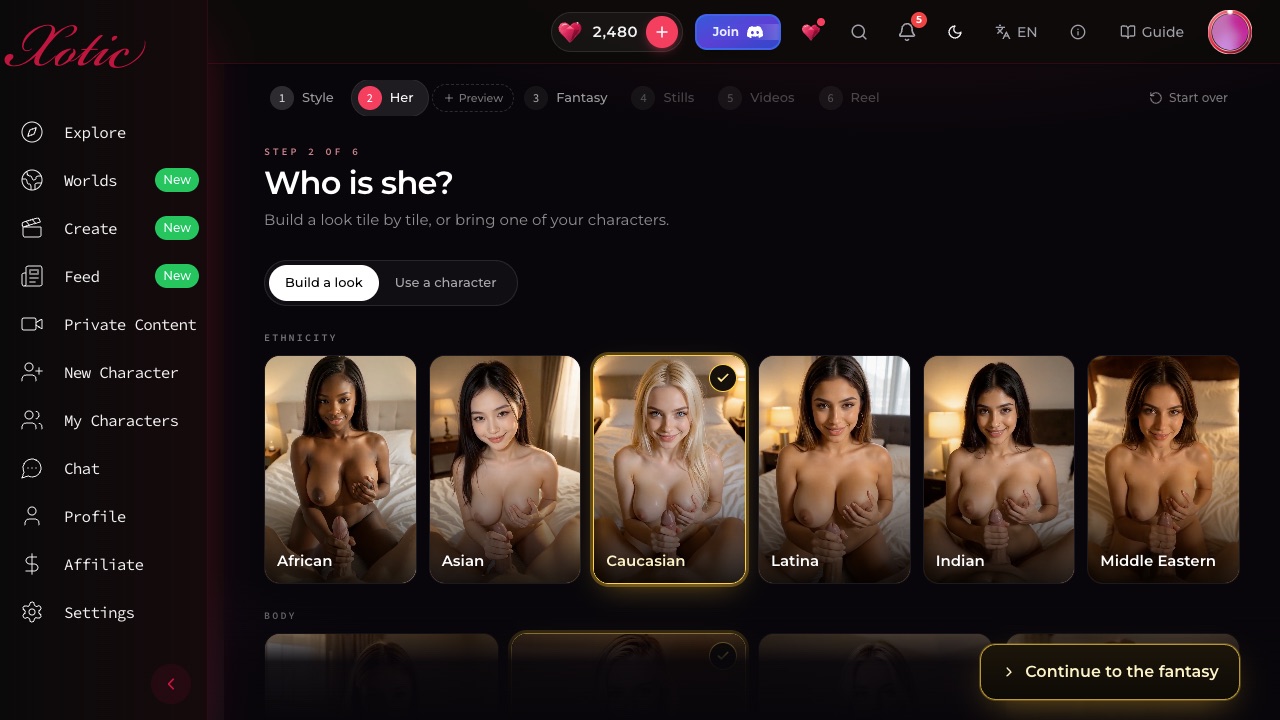
Who is she? Two ways:
- Build a look tile by tile: Ethnicity, Body, Breasts, Ass, Hairstyle, Hair colour, Eyes and Age. Every tile is a real preview, so you can see what each choice does. Ages start at 21.
- Use a character: pick one of yours or one from the community. Her identity stays locked, so every clip looks like her.
Looks you've saved appear under Saved looks. Tap one to start from her.
Preview (optional)#
Want to see her before the shoot? Preview her first renders 4 stills at a time (50 XOT each). Here you can:
- edit the Keywords that describe her (or Edit as text),
- Lock seed on a still you like, so new renders keep that composition,
- Re-roll or get 4 more, heart the ones you like, and Compare them side by side,
- Save look to reuse her later.
What Noir saw shows the exact prompt behind each still. A character's identity is already locked, so for her this step is entirely optional (Use her as she is).
3. Fantasy#
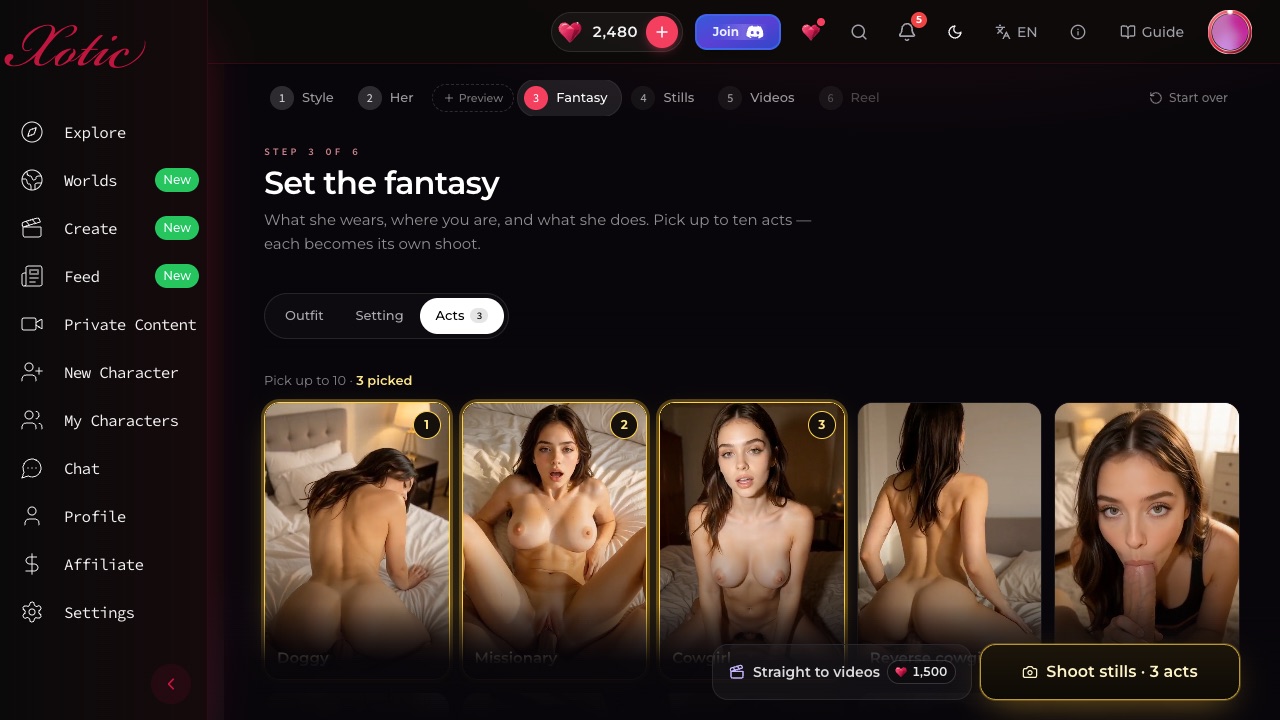
What she wears, where you are, and what she does. Three tabs:
- Outfit: dozens of outfits, from lingerie and swimwear to costumes, or As she is.
- Setting: Bedroom, Hotel suite, Shower, Pool, Beach, Office, Back seat, VIP lounge, Kitchen, Fireside cabin, Photo studio, or the Outfit's own place.
- Acts: pick up to ten. Each becomes its own shoot, and each tile loops an example of the act.
4. Videos#
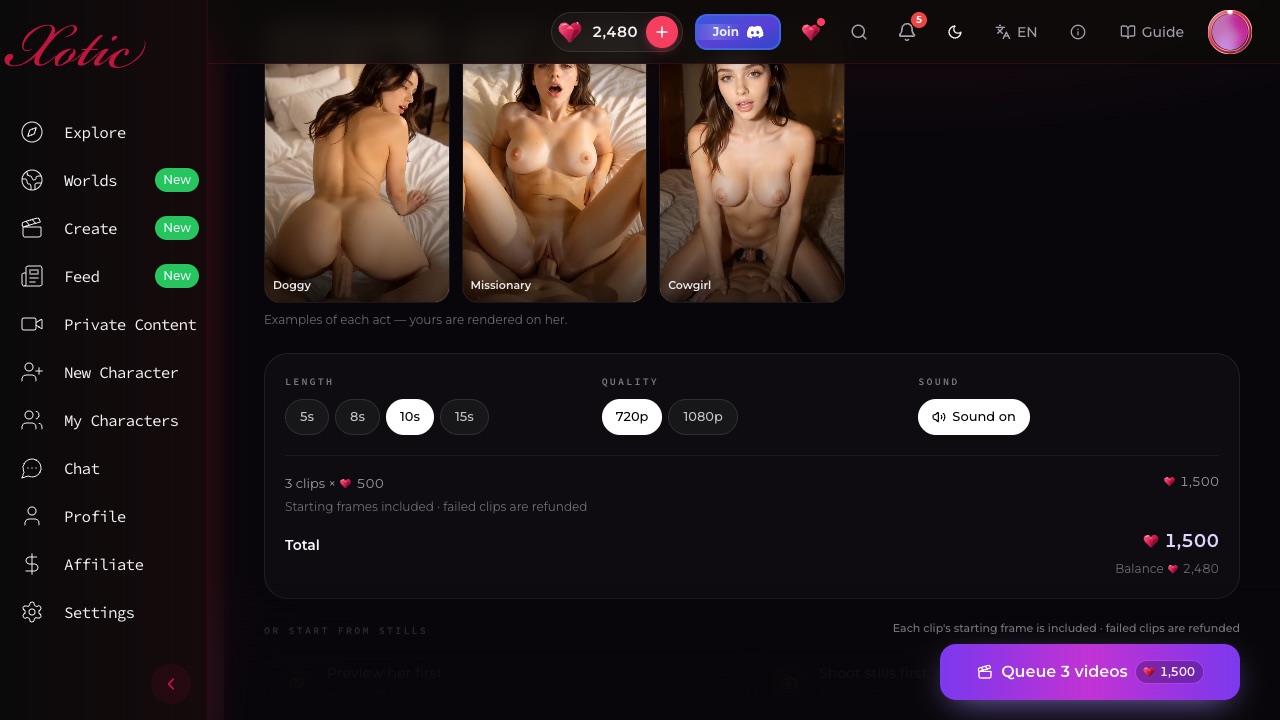
This is where clips get queued. By default Studio goes straight to videos: one clip per act, rendered on her. Each clip's starting frame is made for it and included in the price, so there are no stills to buy first.
Set:
- Length: 5, 8, 10 or 15 seconds,
- Quality: 720p or 1080p,
- Sound: on or muted.
The summary shows clips × XOT per clip, the Total, and your Balance. Tap Queue N videos. A clip costs the same as a NOVA clip at that length and quality (50 XOT per second at 720p, 90 at 1080p), and failed clips are refunded.
Or start from stills#
For more control, choose Shoot stills first under Or start from stills. The Stills step shoots her in every act you picked: choose 1, 2 or 4 Stills per act at 50 XOT each, and they land in under a minute. Then:
- tap Animate on the stills you want as videos, or use Animate all / Animate picked,
- each picked still gets a motion prompt, either the act's own or one written from the frame. Edit it freely, use Expand my idea to turn a short idea into full motion, or Rewrite it,
- queue up to 10 clips per tap. Any extras stay selected for the next one.
5. Reel#
Your reel collects every clip from the run. Clips usually take about 4 minutes, and they appear on their own as they finish. You can leave the page while they render, because everything is also saved in My videos. Tap Play reel to watch them back to back, or tap one clip to watch it fullscreen.
From here, Queue another scene with her (back to the fantasy, same girl), Shoot more stills, Make another with her, or Save her look.
The Queue#
Wherever you are in Studio, the Queue pill shows what's rendering and what's ready (e.g. Queue · 2 live · 3 ready). Tap it to follow progress. A clip that fails shows Failed — XOT refunded.
Saving to a collection#
Tap Save on a still or clip to Add to collection. That files the image into one of your folders (for a clip, the still it started from) or, for a character you own, into one of her draft collections for sale. See My images & My videos and Collections.