My Images & My Videos
Find, organize and reuse everything you've generated — folders and subfolders, the New inbox, contact sheet view, the Posted badge, plus My videos with stitching, reuse settings and refunds.
Everything you generate is saved to your library on the Create page: images in My images, clips in My videos. Both tabs keep loading as you scroll, and they keep your place when you switch tabs and come back.
My images#
Open /create and tap the My images tab. Images from the Create page, Studio and your standalone Create without character renders all land here.
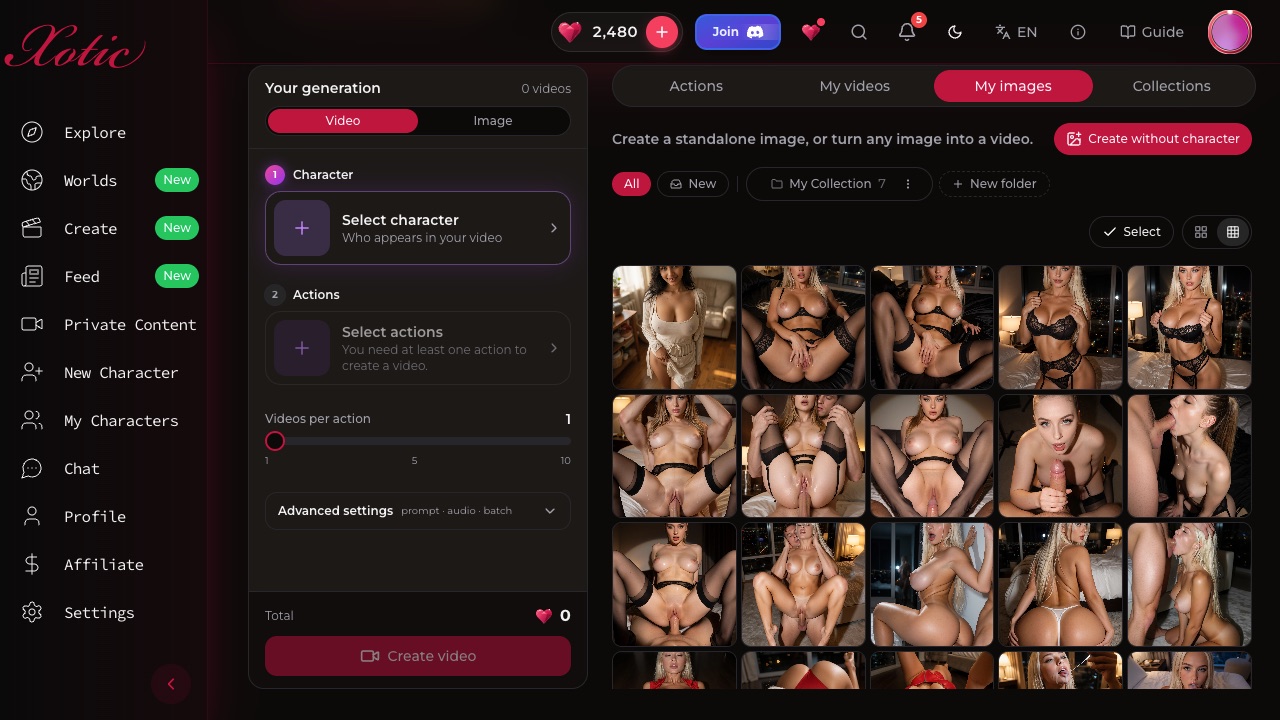
All, New and folders#
The folder bar at the top switches what you're looking at:
- All: every image you've made.
- New: images you haven't put in a folder yet. Fresh renders land here first, so it works as your inbox. When everything's filed, it shows All filed.
- Your folders: tap one to open it. Inside, a breadcrumb trail shows where you are, and its subfolders appear next to it.
Use New folder to make one. From a folder's Folder options menu you can Rename it, add a New subfolder (folders nest up to three levels, e.g. Misha → Misha at the pool → Night swim), Move to… somewhere else, or Delete it. Deleting a folder never deletes images: its images stay in your library and any subfolders move up a level.
Filing images#
- One image: tap its bookmark button, or open its menu, and choose Add to folder. If it's already filed, you can also Move to folder or Remove from folder.
- Lots of images: tap Select, tick the images, then choose Add to folder or Move to folder. Tap Done when you're finished.
An image can sit in more than one folder. Add keeps it where it already is, while Move takes it out of the current folder.
Views and badges#
- Switch between Large thumbnails and Contact sheet with the view buttons. Contact sheet packs many small thumbnails onto the screen, which is handy for scanning a big shoot.
- A Posted badge marks images you've already shared to the feed, so you don't post the same one twice. See Posting to the feed.
What you can do with an image#
Open an image's menu for:
- Create Similar: opens the image generator with this image's prompt, ready to tweak.
- Create Again: reruns it with the same settings.
- Create Video: sets it as the starting image for a video. See Image-to-video.
- Post to Feed: share it to the feed. See Posting to the feed.
- Use as chat backdrop: set it as a chat background.
- Download, folder actions, and Delete.
How it was made shows the prompt behind the image (and the Noir enhanced version for Noir images). See How it was made.
My videos#
The My videos tab holds every clip you've generated, from the Create page and from Studio. Clips that are still rendering show their progress and appear as soon as they finish.
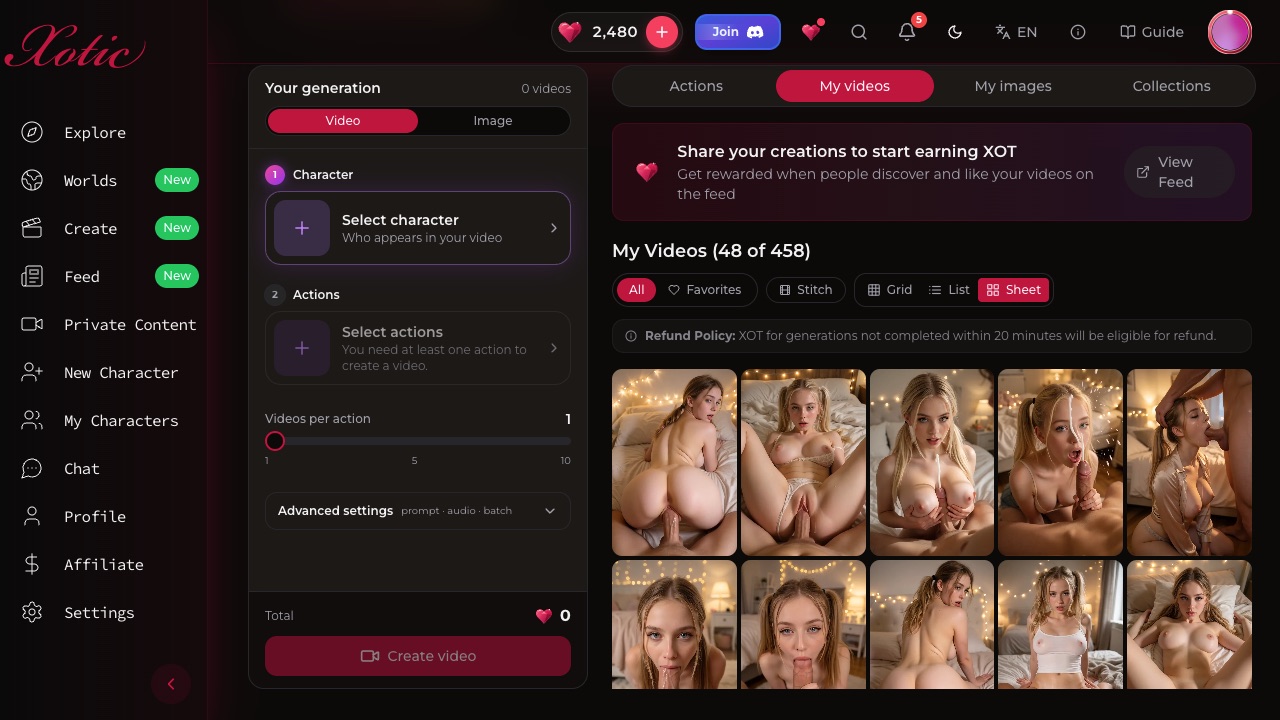
- Views: Grid, List or Sheet. Sheet is a contact sheet for scanning lots of clips at once.
- Reuse settings: loads a clip's action, prompt and settings back into the panel so you can tweak and create again.
- How it was made: shows the motion prompt and, where Noir made the starting frame, the Noir enhanced first-frame prompt.
- Download and Delete on every clip.
Stitching clips together#
Tap Stitch to combine clips into one longer video:
- Tap Stitch to enter select mode.
- Pick 2 to 4 finished clips.
- Drag them into the order you want, then stitch. A stitch costs 50 XOT, and the result appears in My videos.
Failed clips and refunds#
If a NOVA clip fails, its card flips to Failed, you get a notification, and the XOT are refunded automatically. As a backstop, XOT for any generation that hasn't finished within 20 minutes is eligible for a refund. If something looks wrong, contact support.